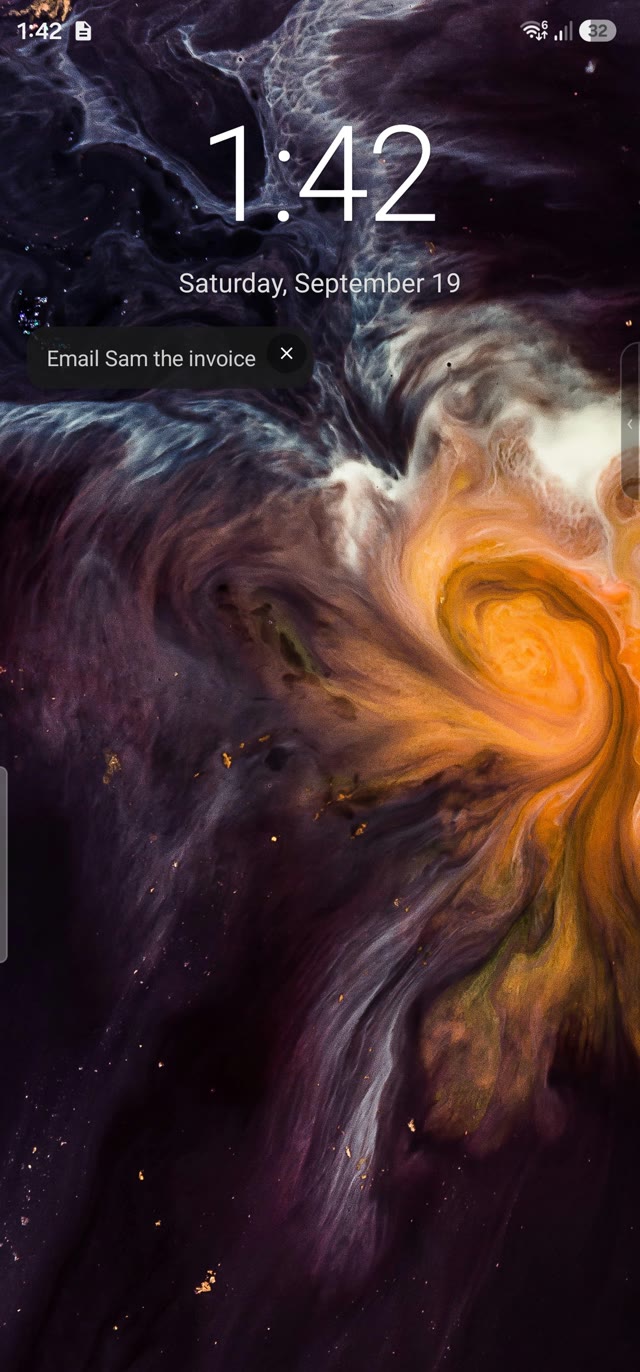
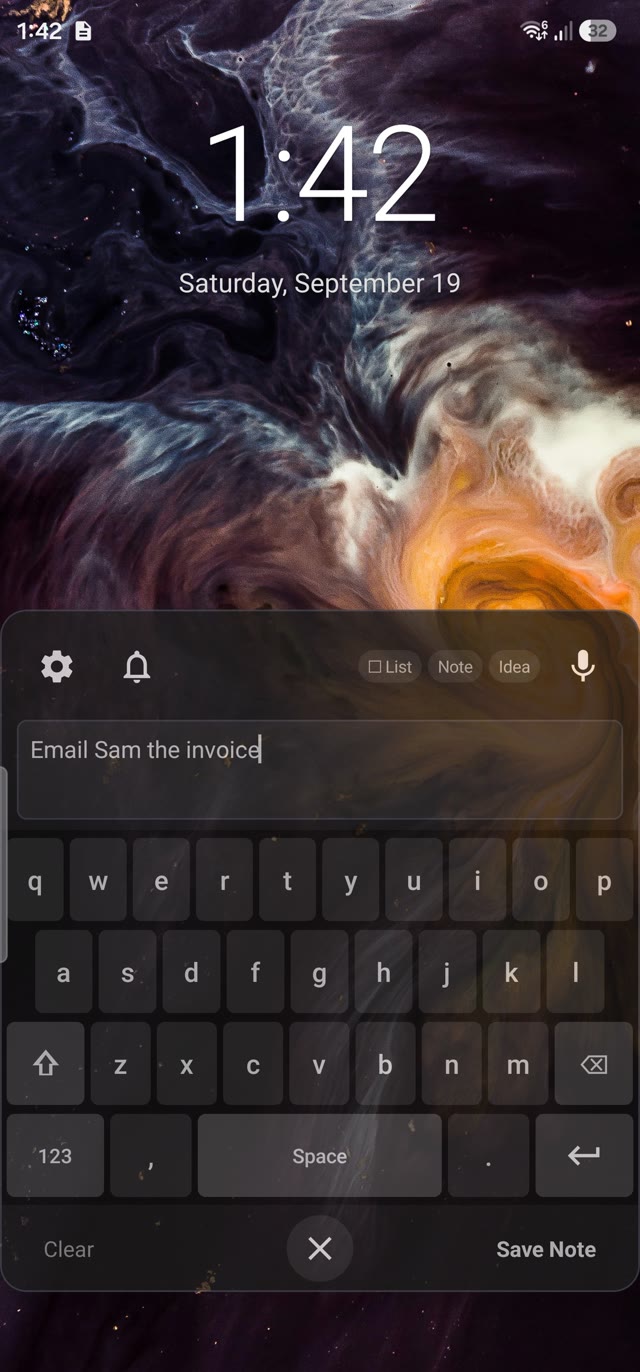
Notes from the lock screen.
Wake the phone, type, hit save. No unlocking, no hunting through your home screen.
 HyperNote
HyperNote catches the thought on your phone. On your PC it keeps that thought beside your work. Snap a screenshot on one and it’s waiting on the other.
HyperNote Android
The thought arrives while your phone is in your hand. HyperNote puts a note pad on the lock screen, so the thought is saved before an app could have opened.
Wake the phone, type, hit save. No unlocking, no hunting through your home screen.
Voice-to-text runs on the phone itself, so it works with no signal and nothing leaves your device.
Stick a note on the lock screen and it’s there every time you pick up your phone. Tap × when it’s done.
The bell sits right beside the note pad. Set it while the thought is still fresh.
HyperNote Windows
The idea. The reminder. That thing you just copied. Give it a home at the edge of your screen, without opening another world of tabs.
A shortcut opens a fresh note in the center of your screen. It saves as you type.
The snip lands in a pinned note. Drag the image into another app, copy it, or save it.
Hit × and the note tucks into the edge dock. One click brings it back, right where you left it.
Start with calm black, or choose from 17 colors so a project or a fleeting idea is easy to spot.
A tiny preview. Try the ×, then bring your note back.
The thing you need is on the small screen and your work is on the big one. No emailing yourself, no cable, no retyping a code before it times out.
HyperNote’s slim dock sits over whatever app you’re in.
The screenshot saves to your gallery and into a note. The dock stays out of the picture.
A new pinned note in under two seconds. Drag the picture straight into whatever you’re working on.
Private by design. Pair the two once with a 6-digit code. After that, pictures travel from your phone to your PC over your own Wi-Fi and never pass through a server. PC switched off? Your phone holds the screenshot and sends it the next time your PC answers.
Both are free. No trial timer, paid tier, subscription, or account to create. HyperNote for Windows you can download right now. HyperNote for Android is in closed beta on Google Play — join the tester group (hypernote-testers@googlegroups.com) and the Play invite link is posted there.
Join the Google Group at groups.google.com/g/hypernote-testers with the same Google account you use on your phone. Anyone can join, there is no approval to wait for. The Play opt-in link is posted in the group, and once you accept it HyperNote installs from Google Play like any other app.
No. Each one is a complete notes app on its own. Pair them only if you want screenshots from your phone to show up on your PC.
SideNote is HyperNote now — same app, same team, new name. Version 1.3.0 installs straight over your old copy and keeps every note, colour and snip exactly where it was. Nothing to export, nothing to move.
You pair the two once with a 6-digit code while both are on the same Wi-Fi. Screenshots then go directly from your phone to your PC across your own network. There is no cloud account and no server in between.
Android only lets an app take a screenshot without showing a “share your screen” popup every time if it uses the accessibility service. HyperNote uses it for the camera button in the dock and nothing else. The screenshot button needs Android 11 or newer.
The × button sends it back to its dock entry. Your text and snips stay in the note. To delete it for good, hover over its dock chip and click the red bin.
On your own devices. The Android app keeps notes on your phone. The Windows app keeps them in one file in its app-data folder: open Settings → Your notes file → Show to find and back up the file.
HyperNote for Windows is a desktop app for 64-bit Windows 10 and Windows 11. HyperNote for Android is for Android 8 and newer. There is no Mac, iPhone, or browser version.
Download and open the installer, then follow the setup steps. It adds a desktop shortcut. The installer is currently unsigned, so Windows may display a publisher warning.